In compliance with a recent U.S. Treasury (OFAC) regulatory change, TOEFL and GRE testing within Iran has been paused effective immediately. Iranian nationals may continue to test outside Iran where testing is available. Affected test takers will be contacted directly regarding cancellations and next steps. [Find out more]
Equipment and Environment Requirements for At Home Testing
If you’re planning to take the TOEFL iBT Home Edition, review and confirm that you meet these requirements before registering for a smoother test day experience. If you don't meet these requirements on test day, you won't be able to take the test. In that event, you won’t receive a refund or a free reschedule.
Download the TOEFL Test App by going to the My TOEFL Home dashboard. Under Upcoming Tests, select Install the TOEFL Test App.
- Selecting this button opens a new tab where you can download the app for your operating system, either Windows or Mac.
Run the file to complete the installation. While in the TOEFL Test App, select the Equipment Check button to confirm that your equipment is ready for test day.
View the screenshots below to learn what you can expect when running the TOEFL Test App.
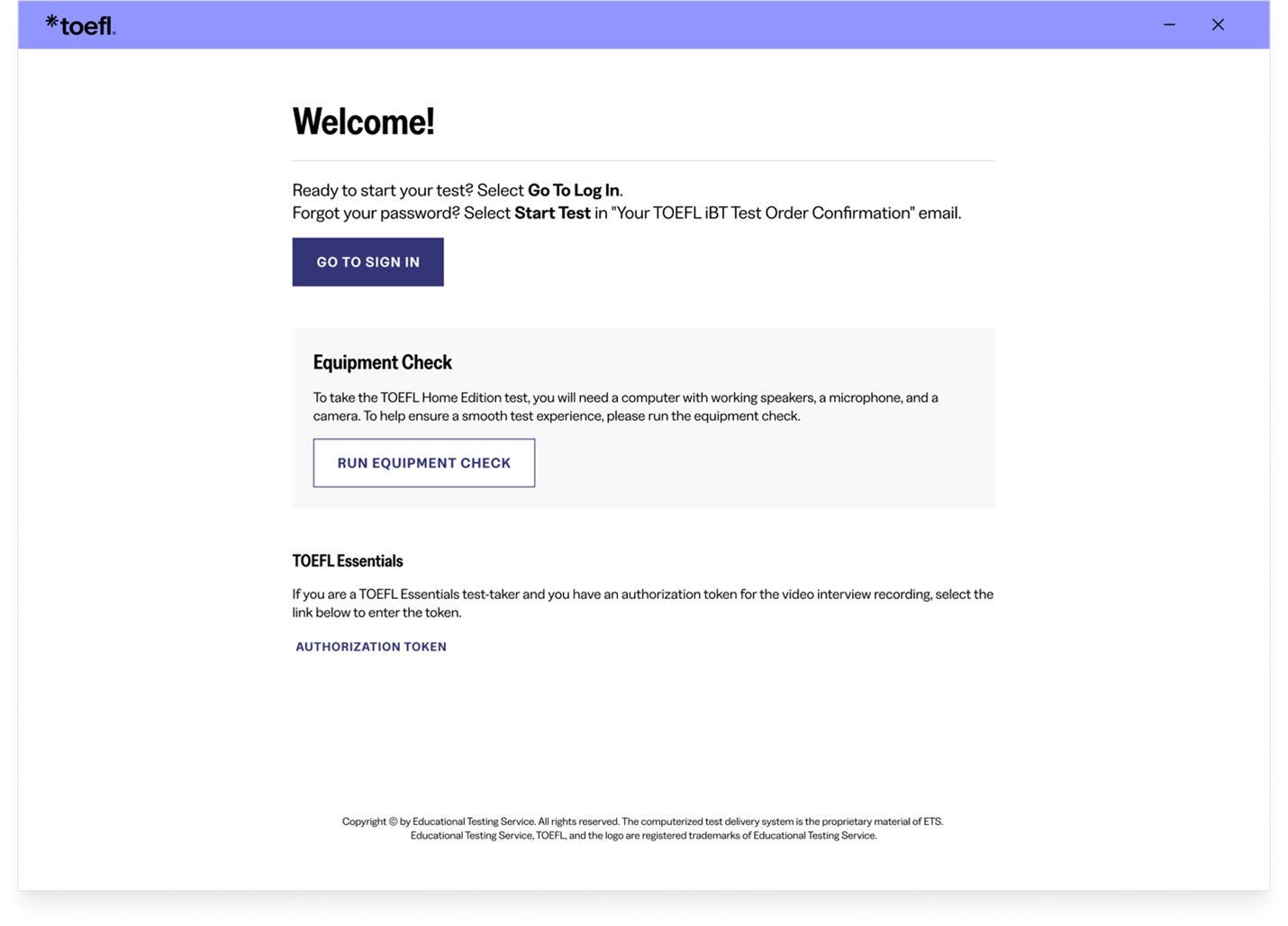
Once you open the TOEFL Test App, you’ll be brought to this welcome screen. From here, you can run the Equipment Check.
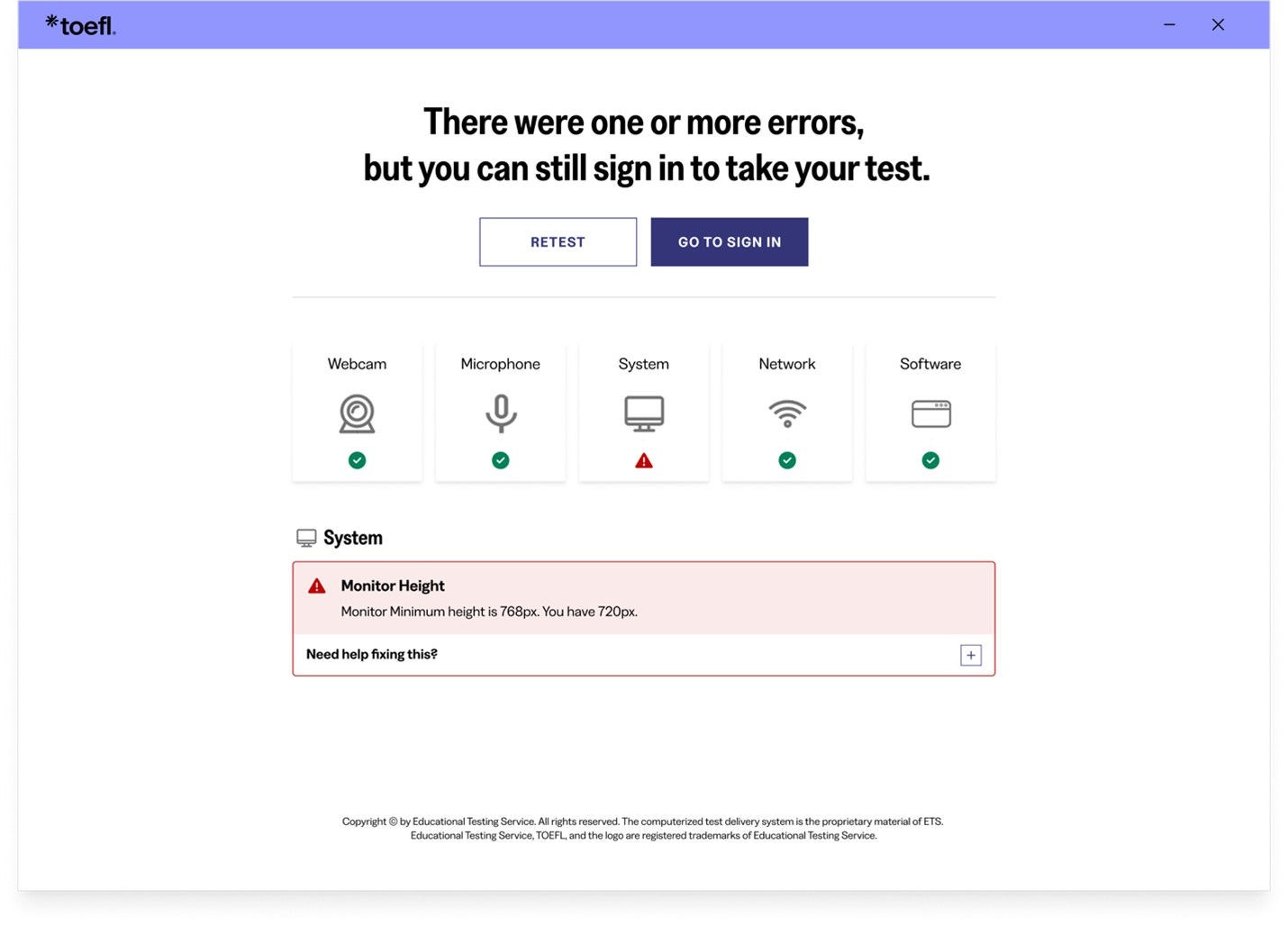
Upon completion of the equipment check, you’ll see the status of your equipment. If any parts have failed, you’ll see a red triangle status indicator. Select the “+” to see tips on how to fix the problem.
If your check fails and you can't resolve the issues yourself, visit Equipment Check Support for troubleshooting tips.
The equipment check includes a bandwidth check. Since bandwidth differs depending on time of day and network usage, run the equipment check at several different times to see which time works best. Additionally, you should run the check on the same day of the week and the same time of day as your test. That way, you're checking your bandwidth in an environment similar to what you would experience when you test. Watch the helpful Tech Tips video.
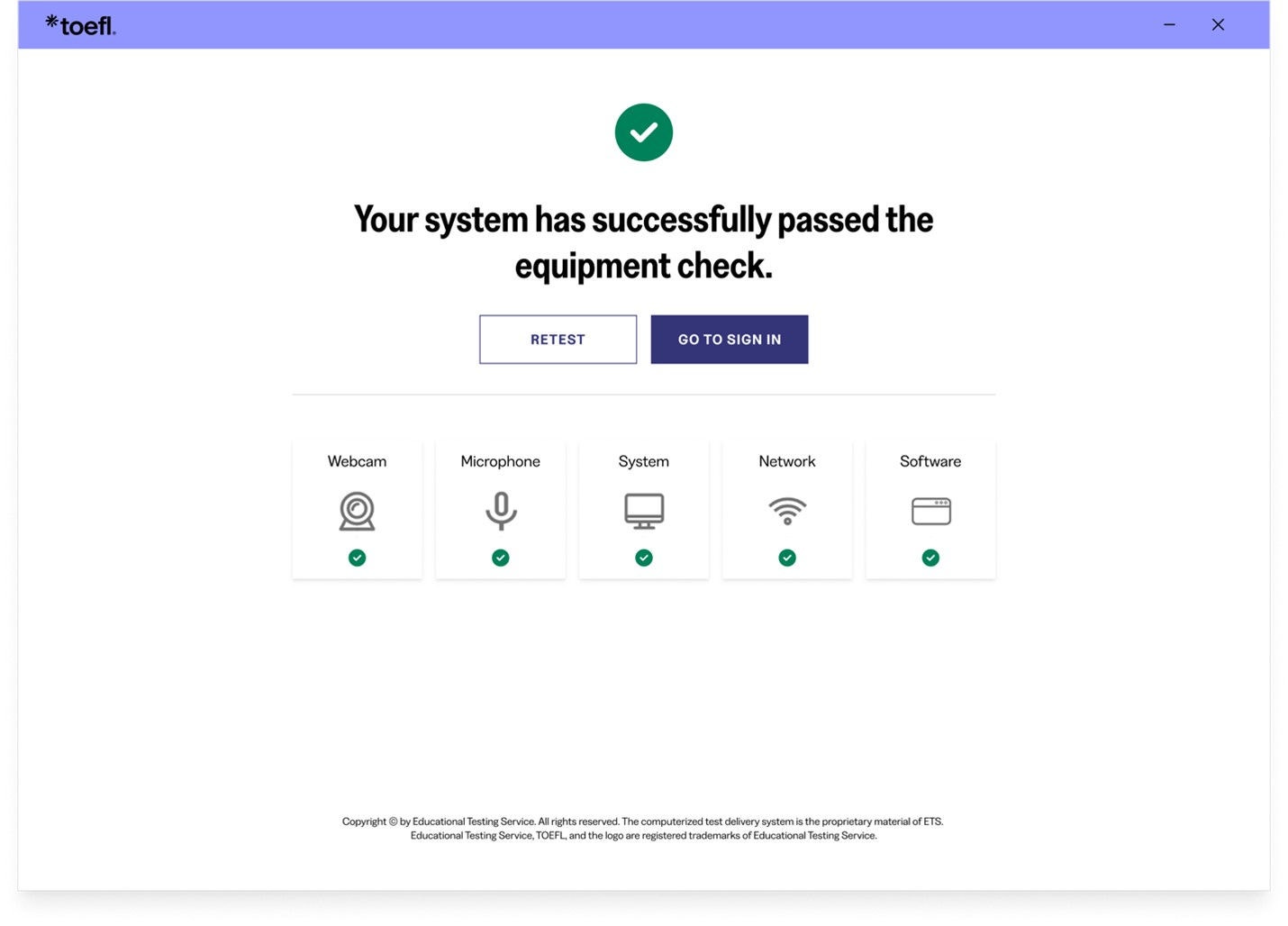
You’ll be informed when you have successfully passed the equipment check.
Equipment requirements
- Desktop or laptop computer. You can't use a tablet or mobile device.
- Only one monitor or screen. Multiple monitors or dual screens are not permitted.
- Only one keyboard. Multiple keyboards are not permitted.
- Approved operating system, which must be licensed. Unlicensed or test-mode versions are not permitted.
- PC: Windows operating system, version 11 or higher
- MAC: Mac OS X® 10.13 or higher
- Use an internal or external speaker to take your test and hear the proctor.
- Headsets or earphones aren't allowed.
- Use an internal or external microphone that isn't part of a headset to take your test and communicate with the proctor.
- Headsets and earphones aren’t allowed.
- A separate webcam, or a camera that is built into the computer or monitor screen, is allowed.
- You’ll need to be able to move the camera to show the proctor a 360-degree view of the room. This includes showing your tabletop surface and the area below it.
- A fully charged smartphone or tablet with a working camera that runs on iOS 12 or later or Android 8 or later
- A stable internet connection
- A sturdy, heavy object to support your phone
- Other devices taking up bandwidth can cause issues during your test. Be aware of other devices that are using significant internet bandwidth when you conduct your equipment check and on test day.
- Close all browsers and applications that you don’t need for the test. This can help prevent bandwidth issues while you test.
- Disable any screen-sharing or remote-access software before the test. You’ll need to keep this software disabled throughout the test and set it so that the software won’t open automatically during the test.
Environment and testing space requirements
- You’ll need to be alone in a room. No one may enter the room during the test.
- You can't take the test in a public space such as a park, internet cafe or restaurant.
- You’ll need to close all the doors in the room before beginning the test.
- All transparent walls, doors or large open windows must be covered.
- Walls must be clear of any material related to the test.
- Your computer and keyboard need to be on a desk or other tabletop surface and remain connected to a power supply throughout testing.
- Position your table and chair so the door to the room will be visible to the proctor. The proctor may require you to do this at check in.
- The tabletop and surrounding area must be clear of all items not approved for use during the test. This includes cameras, notes, study materials, and cell phones.
- If you use your cell phone for check-in, place it behind you and out of reach after check-in, unless it's being used as a second camera for monitoring during the test.
- You’ll need to sit in a standard chair. You can't sit or lie on a bed, couch or overstuffed chair.
- Food and drink aren't allowed during the test.
- Your ears and face need to remain visible throughout the test, not covered by a hat, hair or other items. Religious headwear is permitted if your ears remain visible during the test. Face masks may not be worn during check-in or any part of the at home testing session.
- Dress appropriately for your test. You'll be monitored via camera by the proctor, and your photo will be shared with institutions that receive your scores.
- You’ll need to remove all headphones, smartwatches, face masks, jewelry, tie clips, cuff links, ornate clips, combs, barrettes, headbands and other hair accessories before checking in for your exam. You do not need to remove wedding and engagement rings.
- For security purposes, you may not take notes on paper.
- You may use one of the following to take notes:
- one small desktop whiteboard with erasable marker, no pencil or pen
- one sheet of paper inside a transparent sheet protector, with erasable marker
- At the end of the test, you'll need to show the proctor that all notes have been erased.